
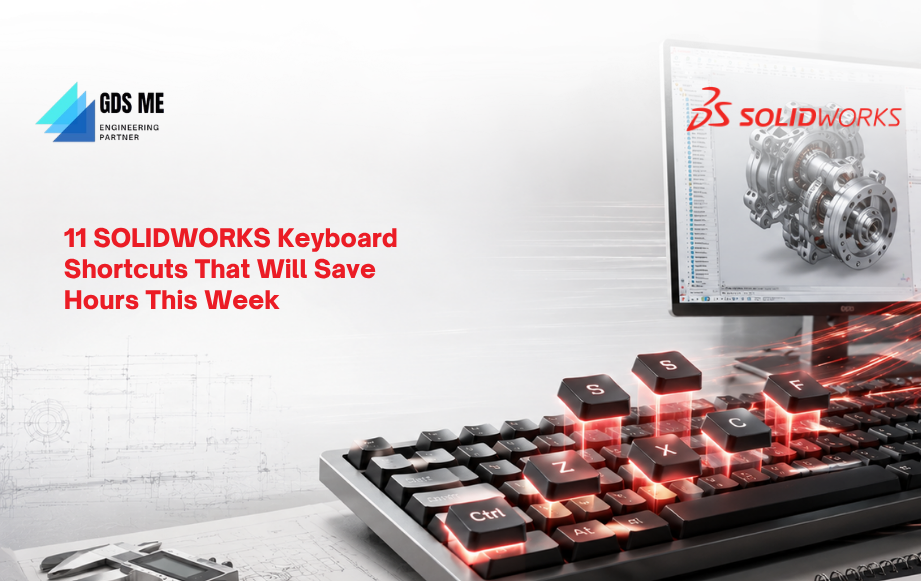
When you work with SOLIDWORKS every day, you already know where time disappears. It is not in the big tasks, but in the small stuff — like switching views, undoing a change, fitting a model on screen, saving a file, jumping back to a command. You never imagine saving time with these seemingly small tasks.
But add up those few seconds across a full working week, and it adds up.
That’s where shortcuts come in handy. You don’t have to sit and memorize every shortcut in SOLIDWORKS. Think about the ones you already use without thinking — Ctrl+C to copy, Ctrl+V to paste, Ctrl+Z when something goes wrong. Your fingers just know them.
SOLIDWORKS shortcuts can become the same. Start with the commands you keep using. If a shortcut saves you a few clicks every time, you will notice the difference after a while.
The same goes if you are still learning the software. When you are doing SOLIDWORKS training, try using shortcuts alongside the commands instead of waiting until you know the software inside out. Even if you are looking for a SOLIDWORKS training center, this is one of those small things that can make day-to-day work easier.
SOLIDWORKS Shortcuts for Actual Modeling Work
Now, coming to the shortcuts you will actually use while working inside SOLIDWORKS.
These are a little different from Ctrl+C or Ctrl+V. Most of them are things you do while sketching, moving a feature, or working with assembly components. You hold a key and do the action.
Some of these may already be familiar. If not, try them once and see which ones fit into your normal work.
F Key – Zoom to Fit
Need to see the entire model on your screen? Press the F key.
SOLIDWORKS automatically fits the model into the graphics area. It is much quicker than manually zooming in or out to get the whole model into view.
Shift + Drag – Move Sketch Entities
Have a group of sketch entities that need to move?
Select them and hold Shift while dragging.
This is useful when the sketch itself is okay, but the position needs changing.
Tab – Change Direction in a 3D Sketch
Working on a 3D sketch and need to change the direction you are drawing in?
Press Tab.
It switches the XYZ direction while you are creating the sketch entity.
This one is mainly for people who work with 3D sketches, but if you do, it can save a lot of stopping and changing things manually.
Ctrl + Drag – Copy a Component
In an assembly, select the component and Ctrl + drag it.
You get another copy of that component.
If the same part has to appear in different places in the assembly, this is one shortcut worth remembering.
Alt + Drag – Smart Mate
Working with mates?
Hold Alt and drag an edge or face towards the matching edge or face on another component.
SOLIDWORKS can create the Smart Mate based on the geometry.
So you don’t always have to stop and open the Mate command.
Ctrl + Alt + Drag – Smart Mate + Copy
This one combines the two.
Hold Ctrl + Alt while dragging the edge or face.
You can create the Smart Mate and copy the component at the same time.
Worth trying when you have repeated parts in an assembly.
Shift + Arrow Keys – Rotate
Need to rotate something by 90 degrees?
Hold Shift and use the arrow keys.
You can change the orientation without dragging the model around with the mouse.
Alt + Arrow Keys – Rotate
Another rotation option.
Use Alt + arrow keys to rotate clockwise or counterclockwise.
You probably won’t use this every five minutes, but it’s good to know when you need it.
Ctrl + Arrow Keys – Pan
Want to move the view around without rotating the model?
Use Ctrl + arrow keys.
It pans the view, which can be useful when you are working on a particular area of a large model.
G Button – Magnifying Glass
Need to take a closer look at a particular area of your model? Press the G button to activate the Magnifying Glass.
You can move the magnifying glass over the model to inspect details without changing your overall view.
Spacebar – View Orientation
Press the Spacebar to open the Orientation menu.
From here, you can quickly switch between different standard views and change how you want to look at the model.
There are many more shortcuts. Consider this as the first set. Don’t worry about remembering everything here. Pick two or three shortcuts that actually match what you do during the day and start there.
After a week of using them, add a few more. That’s probably easier than trying to memorize a whole page of shortcuts at once.
Best SOLIDWORKS Reseller & Authorized Training Center in GCC
By now, you probably get the idea behind these shortcuts.
They are small things. But when you work with SOLIDWORKS every day, small things can make your work faster.
That’s also what we see when we train people. Many users already know SOLIDWORKS. They can create parts. They can make assemblies. They know the basic tools.
But then they get stuck when the model becomes complicated. Or they keep doing something in five steps when there is a much easier way.
That is where proper training helps.
At GDSME – Generative Design Solutions Middle East, we train students and working professionals to get more comfortable with SOLIDWORKS and use it more effectively in real design work.
Why Choose Generative Design Solutions Middle East?
We don’t expect a beginner and an experienced engineer to sit through the same kind of training.
Someone starting may need to understand the basics properly first. Someone already working with SOLIDWORKS may want to improve advanced modeling, assemblies, sheet metal, simulation, or another specific area.
Our SOLIDWORKS training courses cover different levels and areas of the software.
You can start with SOLIDWORKS Essentials and then move on to advanced part modeling. Your work is mainly assemblies. Maybe you work with sheet metal, weldments, surfaces, molds, or simulation.
The training should match what you actually want to do.
And we keep the sessions practical. You don’t just watch a trainer click through commands and then leave. You get to work with the software, try things, make mistakes, and understand how the tools work together.
That is important for working professionals. You don’t really need another certificate that sits in a file somewhere. You need to be able to open SOLIDWORKS and know what you are doing.
If certification is your goal, training can also help you prepare for Dassault SOLIDWORKS certification. We can help build the skills before you take the certification route, including preparation relevant to Dassault Systèmes SOLIDWORKS certification.
And if you have been searching for a SOLIDWORKS training center near me, don’t just choose based on distance. Look at the trainers, the course options, and how much actual hands-on practice you get.
What you can expect from GDSME:
- Certified trainers with practical, industry-relevant experience.
- Hands-on training based on real-world SOLIDWORKS projects.
- Flexible online and face-to-face training for students and working professionals.
- Courses for beginners as well as experienced SOLIDWORKS users.
- Guidance for professionals working towards Dassault SOLIDWORKS certification.
- SOLIDWORKS licensing support as an authorized reseller.
- Technical support to help you beyond the training sessions.
- Training options covering modeling, assemblies, sheet metal, simulation, routing, and other specialized areas.
Coming back to the shortcuts, you don’t become good at SOLIDWORKS by memorizing shortcuts alone.
First, you need to understand the software. Then you start finding faster ways of doing the work. Shortcuts become part of that.
That is what we try to do at GDSME. Help you move from “I know this tool” to “I know how to use this properly.”
If you are looking for a SOLIDWORKS training center in the GCC, take a look at our courses and see what fits your current level.
FAQs
A. SOLIDWORKS Essentials, which covers the basic skills and concepts, is a good starting point if you are new to the software.
A. It depends on your starting level and how regularly you practice. Authorized training centers help you gain confidence in using the software.
A. Certainly! SOLIDWORKS certification will strengthen your profile.
A. Yes. Flexible online and face-to-face SOLIDWORKS training options can make it easier to fit learning around your working hours.
Want to get more out of SOLIDWORKS instead of simply knowing where the tools are? Have a look at the GDSME training courses and choose where you want to improve next.